AI Video Editing App: A 5-Minute Workflow for Faster Content
Use an AI video editing app with a five-minute first-cut workflow, clear review gates, and the right tool for each editing bottleneck.
On this page
- What an AI video editing app should automate
- Set a five-minute editing target before you open the tool
- How do you prepare raw footage for faster automated editing?
- How do you write an edit brief an agent can execute?
- Run the edit with kinara’s coding-agent workflow
- Review the cut like an editor, not a spectator
- Choose the right workflow across leading video editors
- Export, organize, and improve the repeatable pipeline
- Frequently Asked Questions
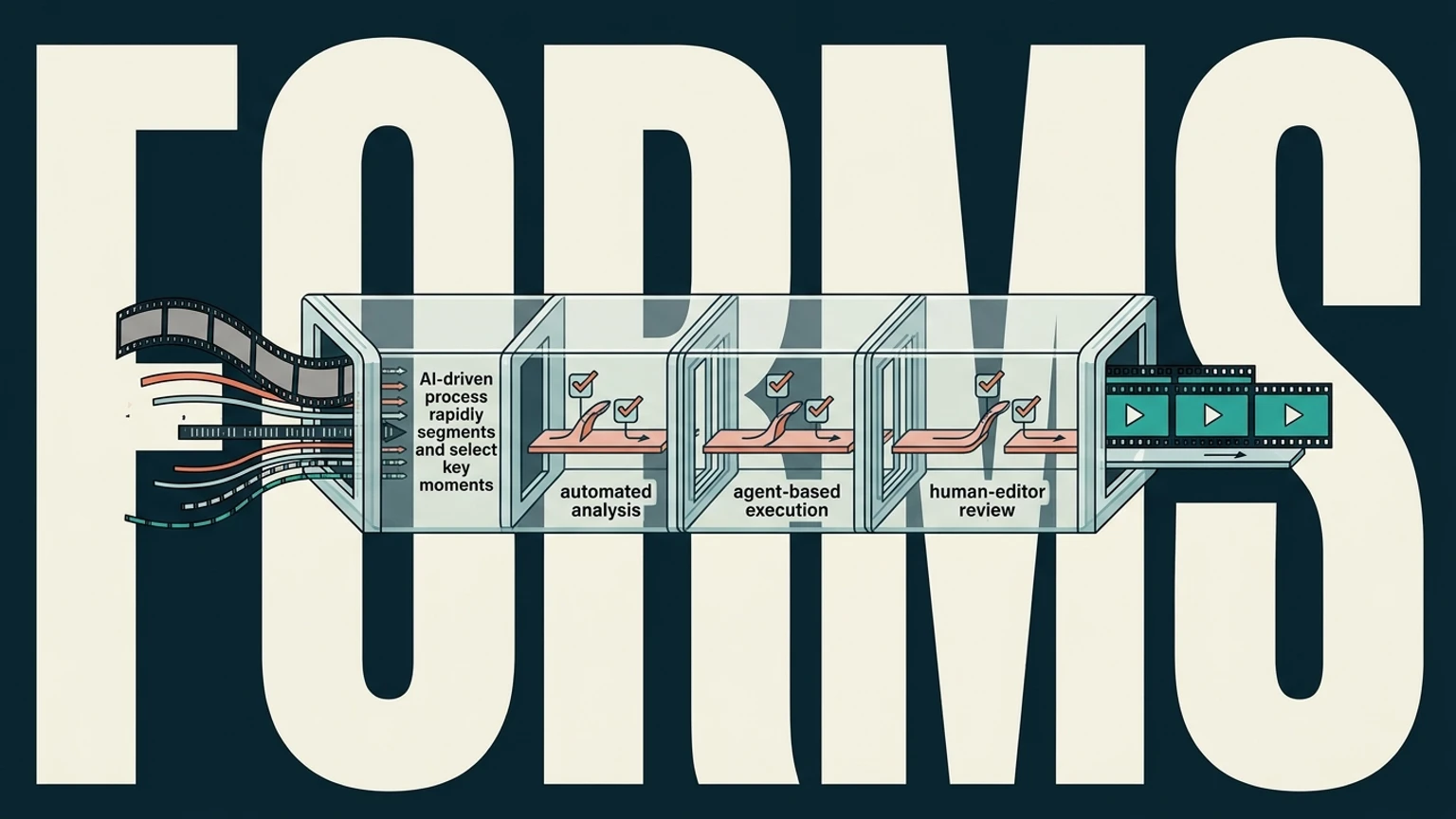
An AI video editing app can find spoken moments, create captions, reframe footage, clean audio, and prepare exports, but it should not make unchecked editorial decisions. The dependable approach is a constrained workflow: define one small deliverable, prepare the inputs, give the editor clear instructions, review the cut, and record what changed.
What an AI video editing app should automate
The practical job is turning recorded footage into a usable short-form or social video faster. Automation works best when it handles repeatable editing operations while a person controls the story, accuracy, permissions, and final quality.
Look for automation in these areas:
- Transcript search: Find a sentence, topic, name, or answer inside a long recording.
- Clip selection: Identify sections that match a question, theme, or target duration.
- Structural edits: Remove pauses, cut repeated answers, tighten an opening, or split one recording into several clips.
- Captions: Generate and format captions while preserving names, product terms, and technical language.
- Reframing: Adapt landscape footage for vertical, square, or other destination formats.
- Audio cleanup: Improve speech clarity and keep music or effects from masking the speaker.
- Export: Produce the requested aspect ratio, resolution, caption treatment, and filename.
The wrong default is to press one button, accept the first generated cut, and assume the software understood the intended message. A transcript can locate an answer while missing the qualification that gives the answer its meaning. An automatic crop can keep a face visible while hiding the product demonstration.
Human review belongs around the decisions that affect what the audience understands. Assign repetitive operations to software, then reserve editorial attention for the hook, sequence, emotional emphasis, factual claims, permissions, and final presentation.
Set a five-minute editing target before you open the tool
Five minutes is a useful first-cut target, not a guaranteed finished-edit time. The first cut should identify usable material and create a reviewable structure. A finished master still needs checks for captions, audio, framing, claims, and export settings.
Before opening an editor, record:
- Source footage location
- Destination platform
- Aspect ratio
- Target duration
- Intended audience
- Main topic or question
- Desired call to action
- Must-keep moments
- Names, terms, or claims that require exact treatment
A rapid workflow fits footage with a defined purpose, such as talking-head clips, founder updates, interviews, tutorials, webinars, and product demonstrations. It becomes less predictable when the project depends on complex visual storytelling, detailed motion design, extensive b-roll, multiple camera angles, or advanced sound mixing.
Use this acceptance checklist:
| Check | Pass condition |
|---|---|
| Scope | One output, aspect ratio, and destination are defined |
| Story | Must-keep moments remain and no cut changes the meaning |
| Speech | Transcript and captions have been checked |
| Picture | First and last frames, reframes, and overlays look correct |
| Sound | The voice stays intelligible throughout |
| Output | The exported file opens and matches the requested format |
| Time | Elapsed time is recorded, with five minutes treated as a target |
If a must-keep moment is missing, stop and revise the instructions before polishing transitions or captions. Faster editing comes from reducing uncertainty before the tool starts working.
How do you prepare raw footage for faster automated editing?
Prepare the material before asking software to select clips. Use descriptive filenames such as founder-demo-camera-a, founder-demo-audio, and founder-demo-screen-recording. Store camera footage, external audio, screen captures, and reference files in clearly separated locations.
Remove unusable takes when the decision is obvious. Mark the strongest source recording if several versions exist. If one take has the cleanest speech and another contains the useful screen demonstration, keep both and state how they should be used.
Transcript-based selection performs better when speech is clear and the recording has a defined purpose. Compare these instructions:
Useful: “Find the explanation of how the product saves an export preset. Preserve the exact terminology and create three clips for vertical viewing.”
Weak: “Make this better for social media.”
The first instruction gives the editor a searchable topic, a preservation rule, and a measurable output. The second leaves the selection criteria undefined.
For a solo founder with a 20-minute product explanation:
- Rename the camera, microphone, and screen-recording files.
- Remove the opening setup and repeated takes.
- Mark the sections covering the problem, workflow, and result.
- Decide whether the output should be one overview or several focused clips.
- List product names and technical terms that captions must preserve.
The footage is now easier to search and easier to divide into distinct edits. This preparation also makes failures easier to diagnose. If the wrong section is selected, the problem could be the source recording, the instruction, or the clip objective.
How do you write an edit brief an agent can execute?
An agent needs constraints that can be checked. Use a structured edit instruction with these fields:
- Input files: Names and locations of source media
- Deliverable: Number of clips, duration, aspect ratio, resolution, and destination
- Audience: Who should understand or act on the video
- Hook: The opening idea or question
- Keep rules: Moments, timestamps, or phrases that must remain
- Remove rules: Pauses, repeated answers, false starts, or unrelated sections
- Pacing: Calm explanation, rapid tutorial, interview rhythm, or another specific direction
- Captions: Position, style, capitalization, and protected terms
- Framing: Crop, speaker position, screen visibility, and aspect ratio
- Prohibited edits: Claims, names, or sections that must not be shortened or removed
- Review gates: Checks required before export
- Output naming: Filename and destination folder
A strong instruction might read:
Use the founder camera, microphone track, and screen recording. Find the answer to “How does the export workflow work?” Create three distinct vertical clips. Remove long pauses and repeated explanations. Preserve product names and technical terms exactly. Keep the opening sentence as the hook. Add readable captions, keep the speaker’s face visible, and export each cut with a unique filename.
A vague instruction such as “Make this engaging for social media” describes a preference without defining success.
When the first cut misses the point, revise the instruction around the failure. Replace “make it shorter” with “remove the setup section, keep the answer, and begin with the sentence that explains the user outcome.” Specific corrections become reusable rules for later projects.
Run the edit with kinara’s coding-agent workflow
Manual editing remains useful when a project needs direct timeline control. A creator can review the transcript, mark in and out points, duplicate a sequence, apply a vertical crop, generate captions, listen for audio problems, and export each version. Repeating those operations across many clips creates the bottleneck.
kinara gives editors, solo creators, and founders a workflow for using coding agents to carry out video-editing operations. The process starts by selecting media, defining the deliverable, and specifying the checks that matter. The resulting edits can be inspected, adjusted, and rerun when the first version misses a requirement.
Consider a long founder recording that needs three short clips:
- Find the explanation of the customer problem.
- Find the product demonstration that answers it.
- Find the closing recommendation or call to action.
Each output can follow the same caption rules while using platform-specific framing. If one clip starts too slowly, the instruction can be revised and the operation rerun without rebuilding every step manually.
kinara fits when repeated editing work is consuming time and the creator wants the instructions and operations to remain visible. It does not decide what the video should say or eliminate editorial review. Its role is to make repeated tasks easier to specify, run, inspect, and correct.
For readers comparing coding-agent workflows with other tools, this Eddie AI editing-stack overview offers another way to think about where automation belongs.
Review the cut like an editor, not a spectator
Review the first cut in a fixed order so an attractive opening does not hide a serious error.
- Watch the opening without context. Confirm that the first sentence explains why the viewer should continue.
- Check meaning. Make sure a cut has not removed a qualification, changed an answer, or altered a recommendation.
- Inspect jump cuts. Look for broken gestures, unnatural eyelines, or edits that distract from the point.
- Read every caption. Verify names, numbers, product terms, punctuation, and line breaks.
- Listen to the audio. Confirm that speech stays clear and music or effects do not mask it.
- Check the frame. Look for cropped faces, hidden demonstrations, broken overlays, or awkward reframing.
- Verify the ending. Ensure the call to action finishes cleanly instead of stopping mid-sentence.
Expert judgment still matters for pacing, emotional emphasis, visual continuity, legal claims, names, numbers, and sensitive wording. A technically accurate transcript can produce a poor clip when the selected sentence lacks the context that makes it persuasive.
Stop and revise when a must-keep moment is missing, the meaning changes, captions contain errors, speech is masked, framing breaks, branding becomes inconsistent, or the exported file cannot be opened and checked.
Track the cause of each revision. If captions repeatedly miss product terminology, add a protected-terms list. If clips regularly begin with setup language, make the hook rule more specific. If vertical reframing hides the product screen, add a framing constraint.
Choose the right workflow across leading video editors
There is no evidence-based universal winner. A team choosing an AI video editing app should start with the operation that consumes the most time, then select the tool whose documented workflow addresses that bottleneck.
| Tool | Documented fit | Choose it when | Tradeoff |
|---|---|---|---|
| kinara | Coding-agent-led video editing with repeatable operations | The priority is inspectable instructions that can be adjusted and rerun | Clear instructions and editorial review remain necessary |
| Descript | Transcript-based editing, instant transcription, and clip creation | The priority is editing spoken content through text | Results still depend on source quality and review |
| Adobe Premiere Pro | Transcription, text-based editing, AI Media Intelligence, and deep timeline control | The priority is professional finishing and detailed timeline work | More control creates more decisions to manage |
| CapCut | Social editing, transcription, captions, text-to-speech, and background removal | The priority is accessible social production with familiar controls | Automated captions and timing require checking |
| OpusClip | Long-video clipping, instructions, aspect ratio controls, minor edits, publishing, and XML export | The priority is repurposing long-form footage into short clips | Selections vary with the source and settings |
Descript documents transcript editing and Create Clips. Adobe documents transcription, text-based editing, and AI Media Intelligence. OpusClip documents its long-to-short workflow and XML export. CapCut lists auto subtitles and transcription features.
Descript can be stronger for transcript-centered work. Premiere Pro can be stronger when detailed timeline control and professional finishing are central. CapCut suits accessible social production, while OpusClip focuses on automated repurposing. kinara is the better fit when coding agents and repeatable, inspectable editing operations are the main requirement.
The decision should follow the bottleneck. Choose transcript editing when finding spoken material is the slowest task, timeline software when finishing control matters most, automated repurposing when one long recording must produce many short clips, and kinara when the workflow needs editable instructions that can be rerun.
Export, organize, and improve the repeatable pipeline
Before delivery, verify the aspect ratio, resolution, captions, audio, filename, thumbnail frame, and destination platform requirements. Open the exported file and watch enough of it to confirm that the render matches the reviewed cut. An export that was never opened remains unverified.
Keep the source footage, edit instructions, generated versions, review findings, export settings, and final asset path together. A simple record can follow this structure:
source IDs → instruction version → tool settings → generated cut → review findings → export settings → final asset path → next change
This record separates a source problem from an instruction problem and makes successful edits easier to reproduce.
Measure improvement through operational signals:
- Turnaround time from recording to approved export
- Number of revision rounds
- Usable clips produced from one recording
- Percentage of exports requiring manual repair
- Most common reason for rejection
If the same repair appears repeatedly, change the workflow rule instead of fixing the symptom each time. When captions fail on the same product term, protect that term. When the hook repeatedly starts too late, define the opening more precisely. When exports fail inspection, add the missing check before the next run.
The workflow becomes more predictable when each edit leaves behind a clearer instruction, a recorded review result, and a known next change. For teams ready to test that process on a small group of clips, the next step is Download for Mac.
Frequently Asked Questions
Is there an AI that can edit my videos?
Yes. AI video editing apps can transcribe footage, search spoken content, select clips, create captions, reframe video, clean audio, and prepare exports. Human review remains necessary for meaning, accuracy, permissions, pacing, and final quality.
What is the best AI video editing app?
There is no universal best choice supported by the available evidence. Descript fits transcript-centered editing, Premiere Pro fits detailed timeline control, CapCut fits accessible social production, OpusClip fits long-to-short repurposing, and kinara fits coding-agent-driven editing operations.
What is the best free AI video editor?
The answer depends on the workflow and the restrictions attached to the current plan. Canva documents a free plan, while other tools document different access models and limits, so compare source length, export requirements, captions, and review controls instead of treating “free” as proof that every feature is included.
Can ChatGPT edit videos for you?
Consumer ChatGPT uploads do not establish that ChatGPT can return a finished edited and exported video from any uploaded file. OpenAI documents a separate API operation for editing a source or generated video, but that API reference does not establish the same capability in consumer ChatGPT.